Lurion × HubSpot Integration Setup Guide
Effortlessly connect HubSpot to Lurion and start building powerful, AI-powered dashboards in minutes. This guide walks you through installing, connecting, configuring, using, disconnecting, and uninstalling the integration.
Features
Lurion is a next-generation analytics platform that connects directly to your HubSpot account, turning your customer, sales, and marketing data into clear, interactive dashboards—instantly.
With Lurion + HubSpot, you can:
With Lurion + HubSpot, you can:
📊 Interactive Dashboards
Build dashboards from deals, leads, companies, and CRM events
⚡Automated Reporting
Always-up-to-date dashboards with no manual exports
🤖 AI Assistant
Ask Aimee questions and get answers in plain English
📈 Sales Performance
Track rep activity, deal velocity, and pipeline health
How to install the App
Get started by connecting your HubSpot account to Lurion. The process takes just a few minutes and requires no technical setup.
1. Start in Lurion
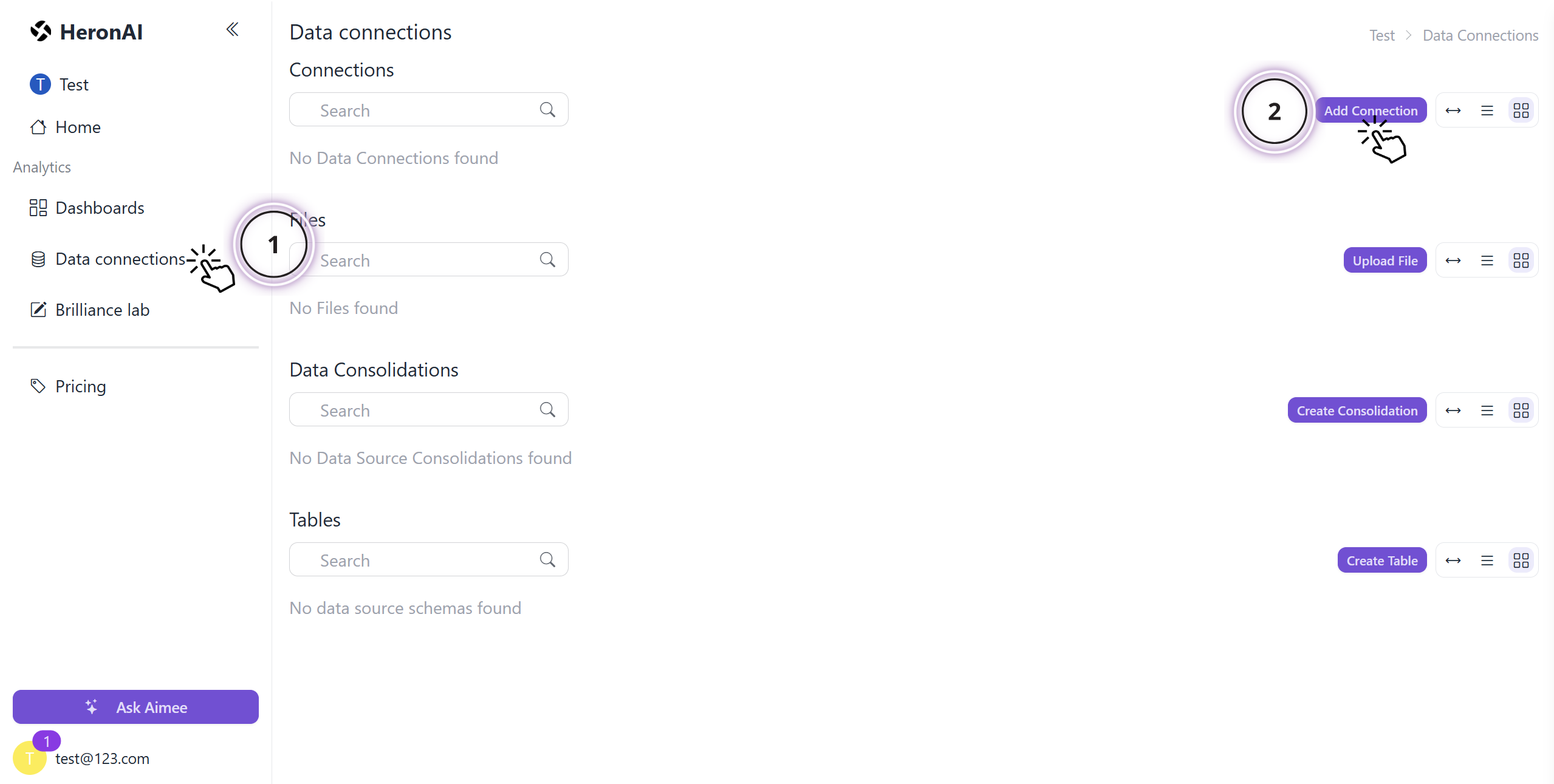
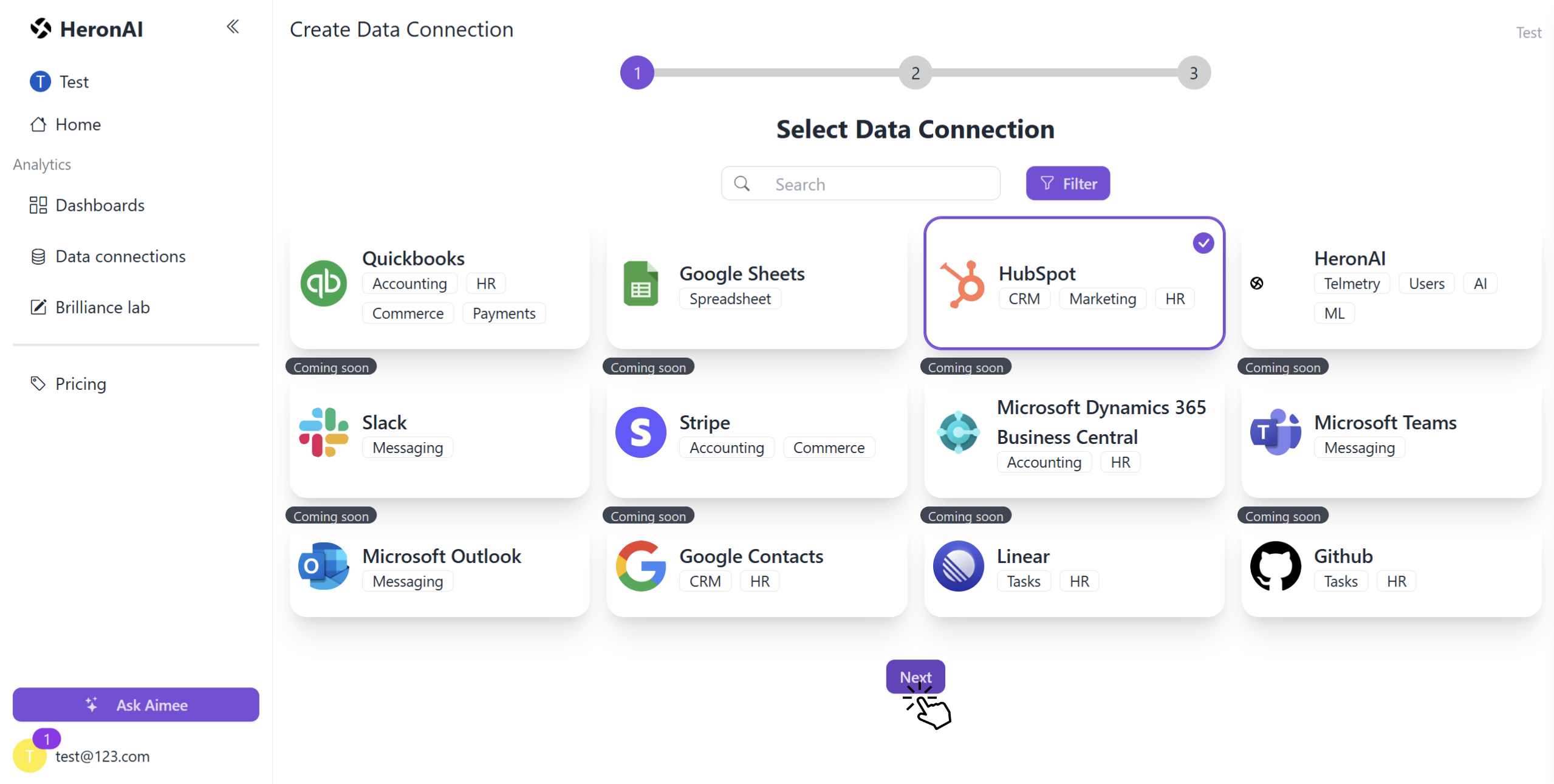
Sign up and log in to your Lurion account, then navigate to Data Connections → Add Connection and select HubSpot.
2. Authorize with HubSpot
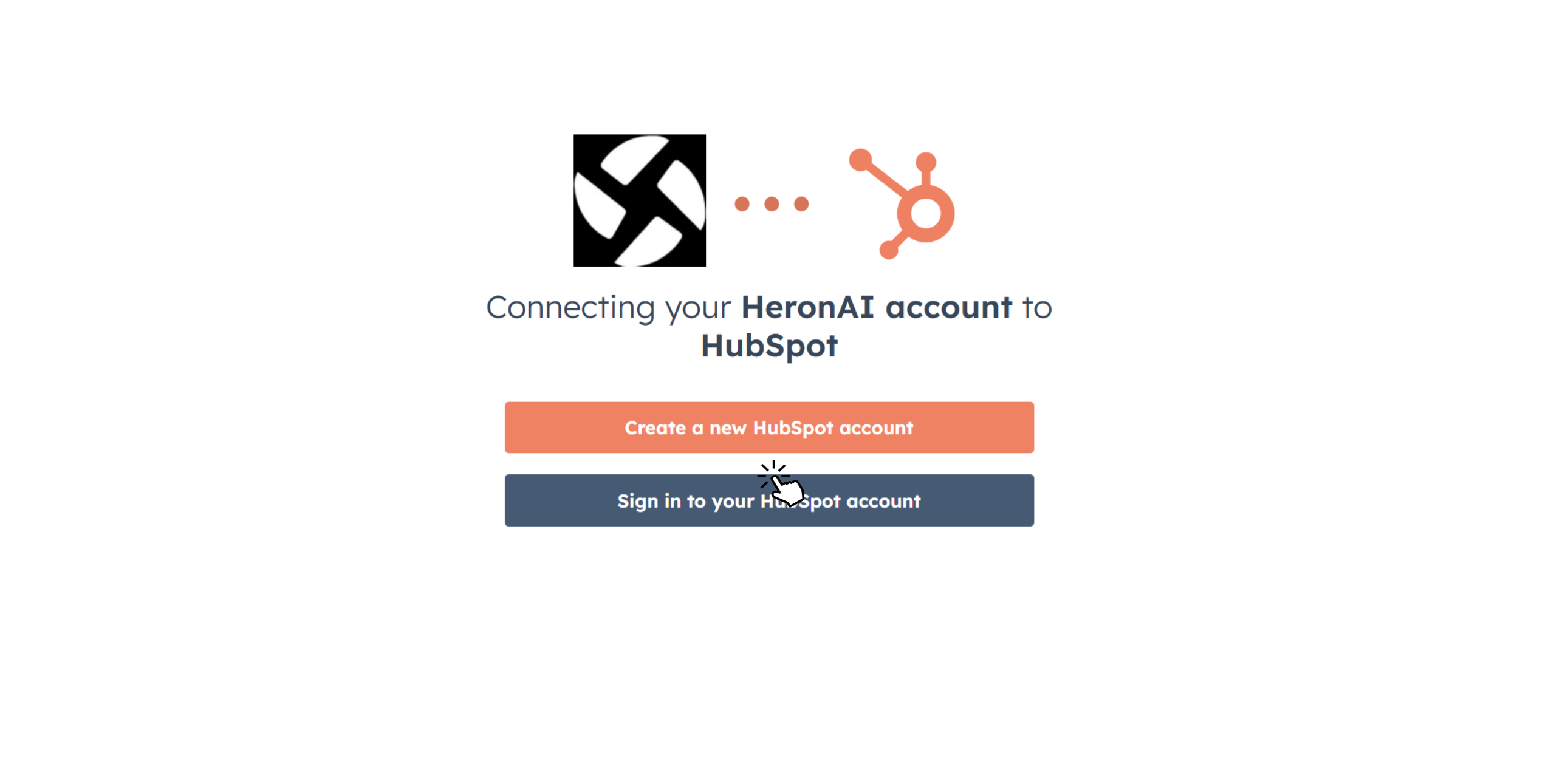
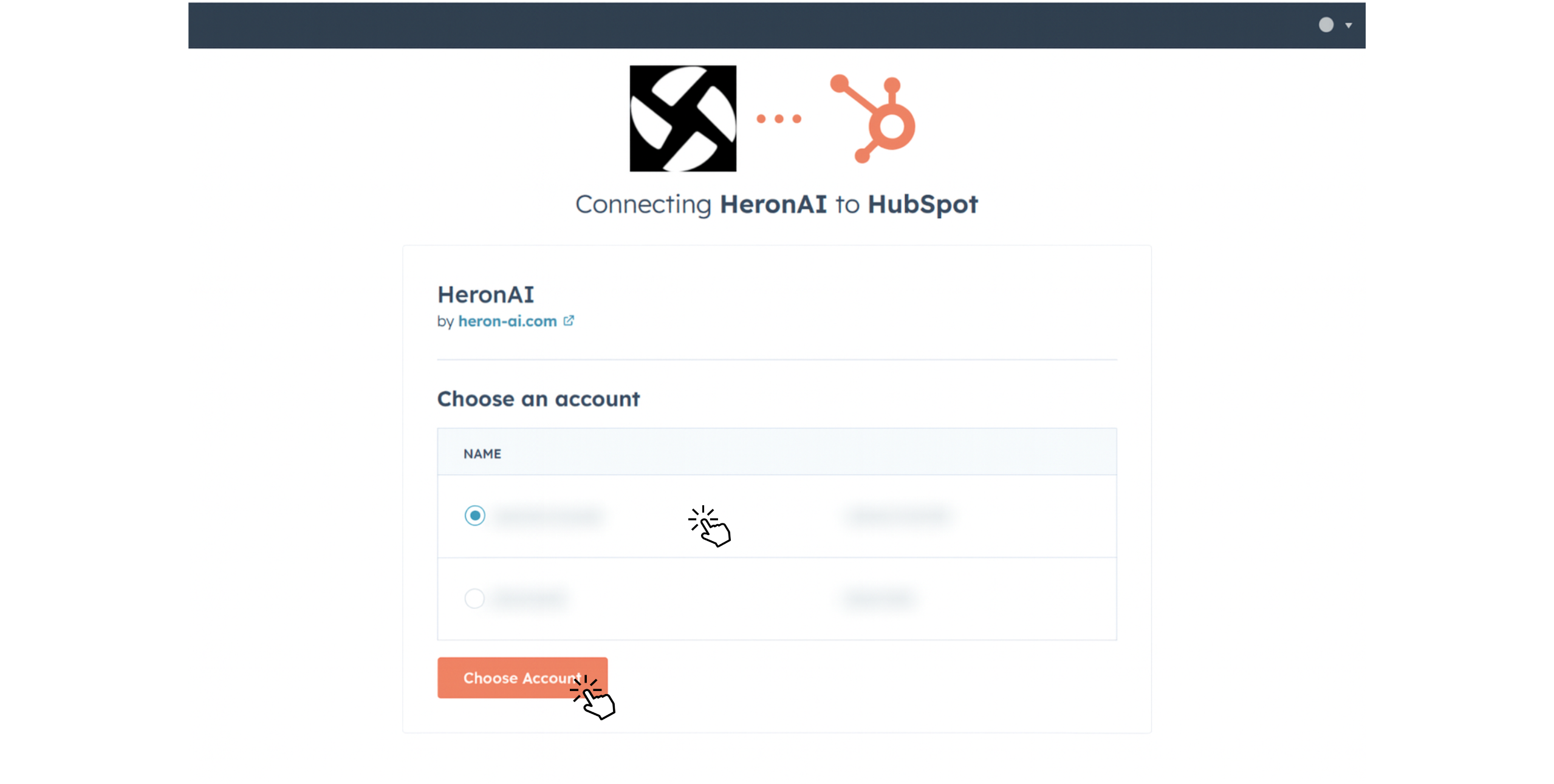
You'll be redirected to HubSpot's OAuth screen. Log in and select the HubSpot account you want to connect.
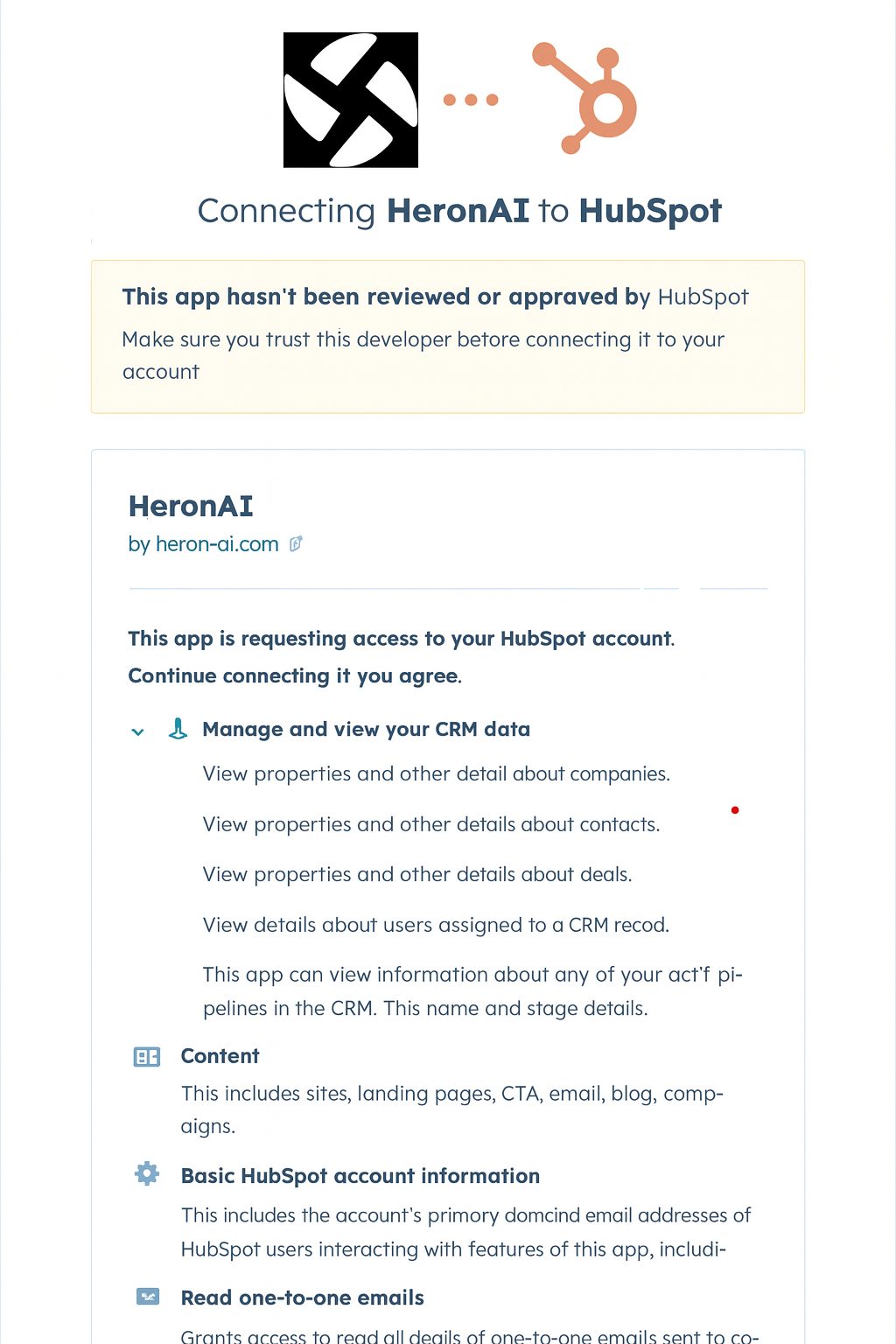
3. Confirm Permissions
Lurion is designed to work seamlessly with your HubSpot CRM, treating it as the single source of truth and keeping your data fully under your ownership.To provide accurate, real-time dashboards and AI-driven insights, Lurion requires access to several HubSpot APIs.
Unlike some integrations that simply export your CRM data, Lurion uses these permissions to securely process your data within our platform, without altering or deleting anything in HubSpot.
Unlike some integrations that simply export your CRM data, Lurion uses these permissions to securely process your data within our platform, without altering or deleting anything in HubSpot.
4. Name Your Connection
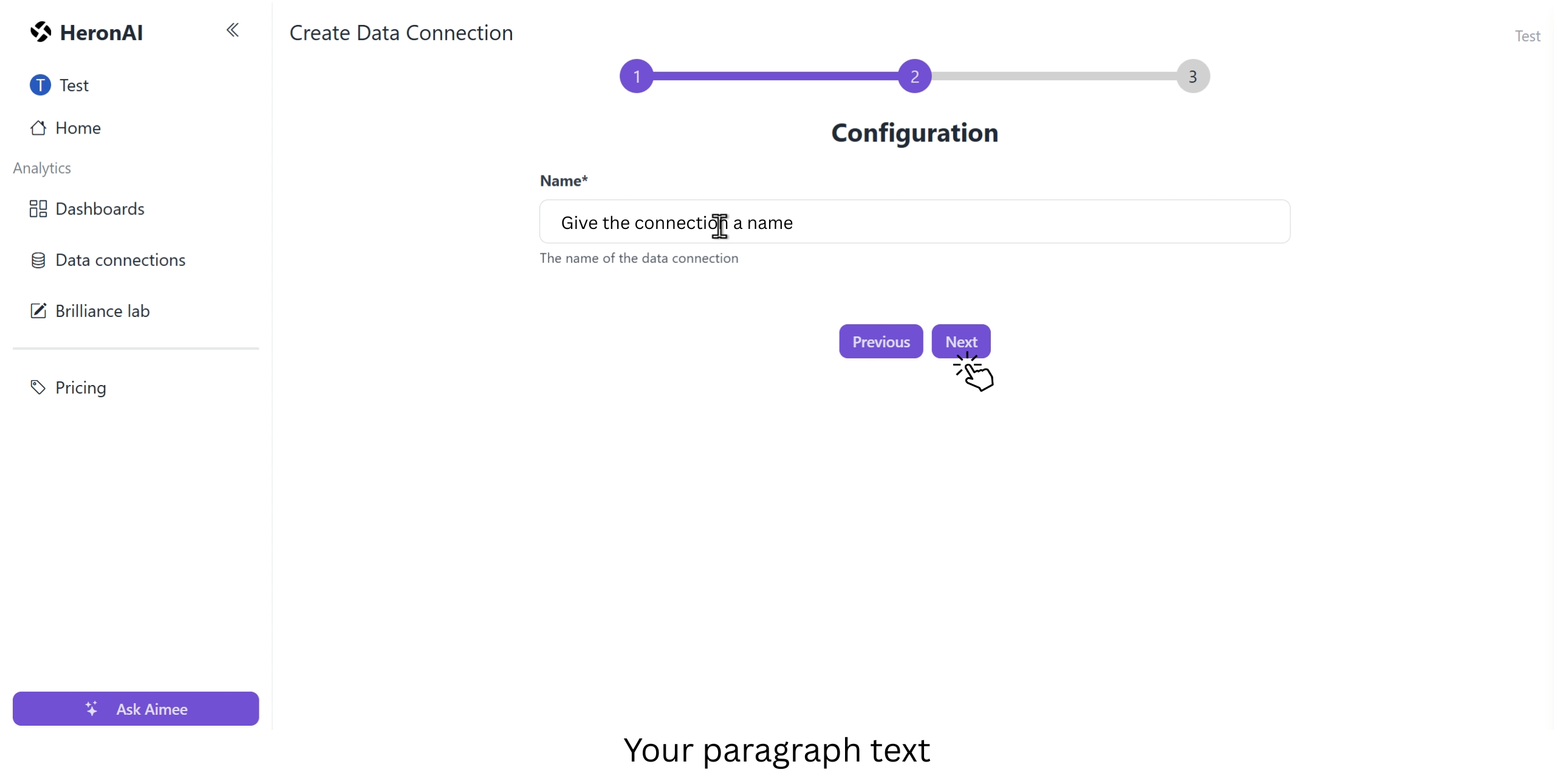
After approving the requested permissions, click “Connect App.” You’ll be redirected to a page where you can enter a name for this connection. This name will appear under the “Data Connections” tab and help you identify it easily later.
Configure the App
Once connected, you'll need to sync your HubSpot data to start building dashboards and getting insights.
Initial Data Sync
After connecting your HubSpot account, Lurion does not sync data automatically (yet). This is a planned improvement for the future.
To manually sync your HubSpot data:
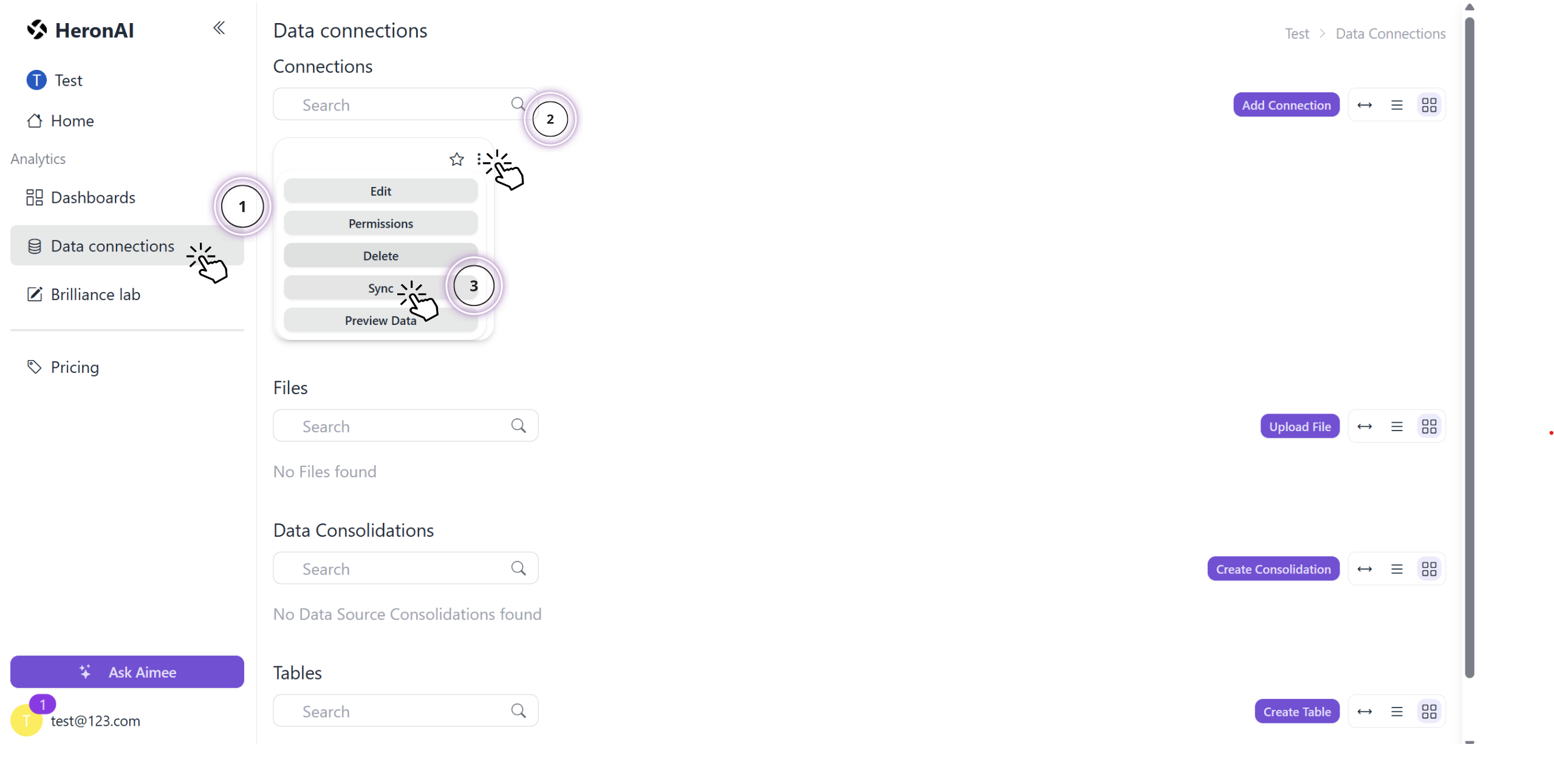
Go to Data Connections → Find your HubSpot connection → Click the three-dot menu → Select "Sync". Check "Synchronize dashboards" if you want to update existing dashboards.
To manually sync your HubSpot data:
Go to Data Connections → Find your HubSpot connection → Click the three-dot menu → Select "Sync". Check "Synchronize dashboards" if you want to update existing dashboards.
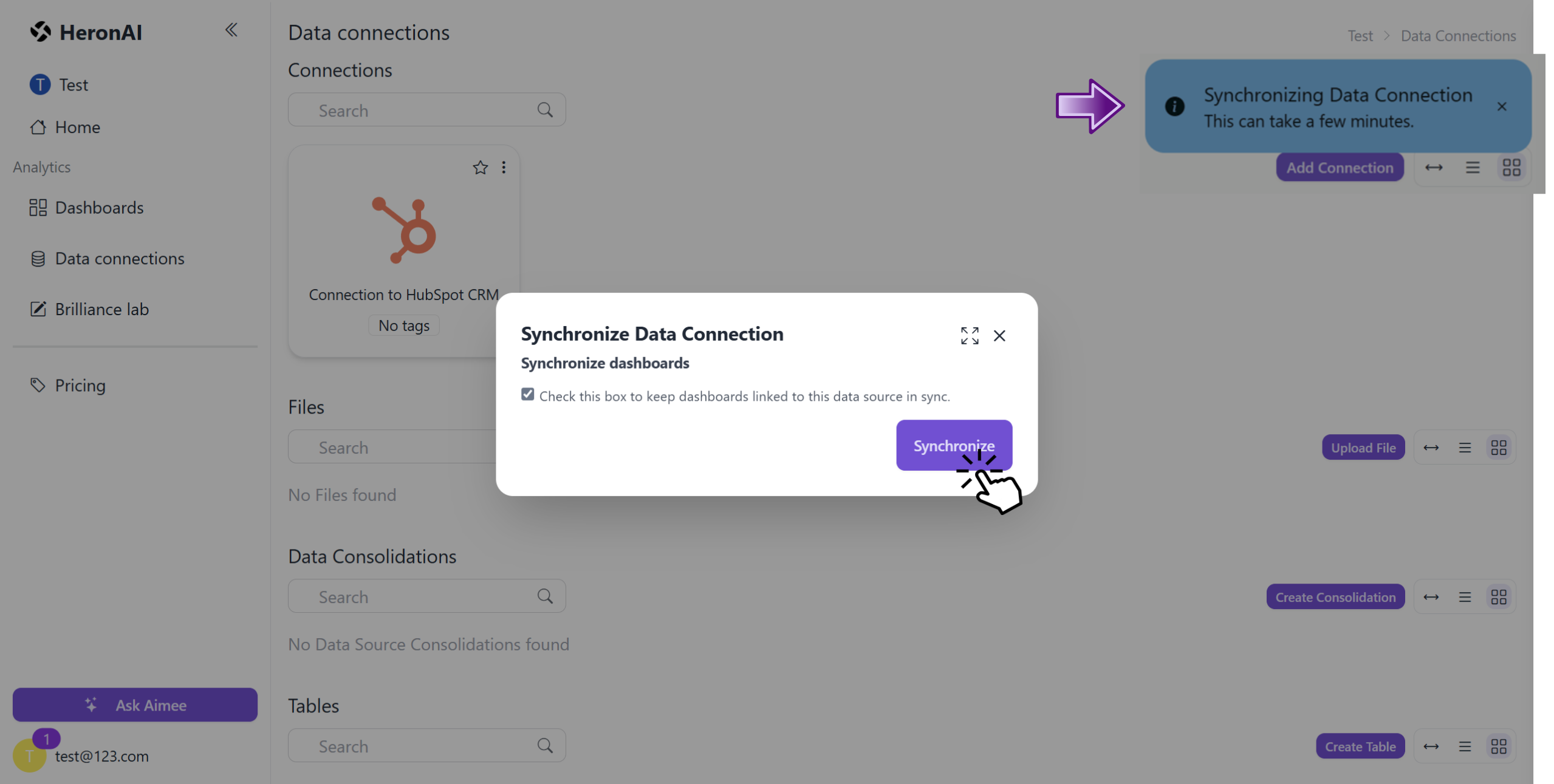
This opens the “Synchronize Data Connection” dialog, check the “Synchronize dashboards” box if you’d like to update any dashboards already linked to this connection, then click “Synchronize” to begin syncing. Depending on the size of your data, the process may take a few minutes, and you’ll see a blue alert in the top-right corner showing sync progress.
Using the App
Once your HubSpot data is synced, you can start creating powerful dashboards to visualize your sales, marketing, and customer data. Lurion offers flexible ways to build dashboards that match your specific needs.
📊Creating Dashboards
Lurion provides two main approaches to create dashboards from your HubSpot data. Choose the method that best fits your needs and timeline.
🚀1. Using Templates
Get up and running in minutes with professionally designed dashboard templates tailored for HubSpot data. Perfect for common use cases like sales performance, lead tracking, and pipeline analysis.
Navigate to Dashboards → New dashboard → Use Template
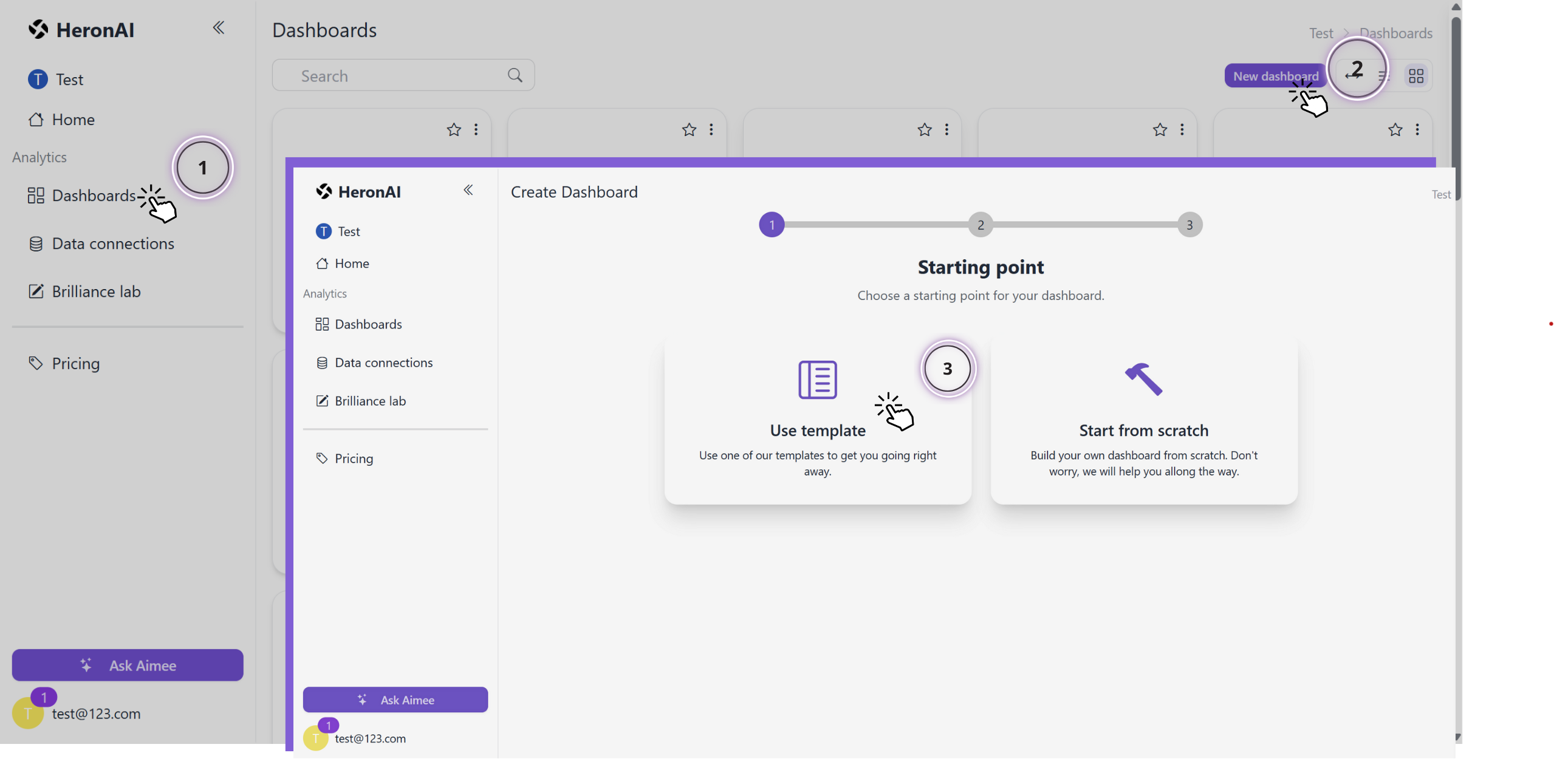
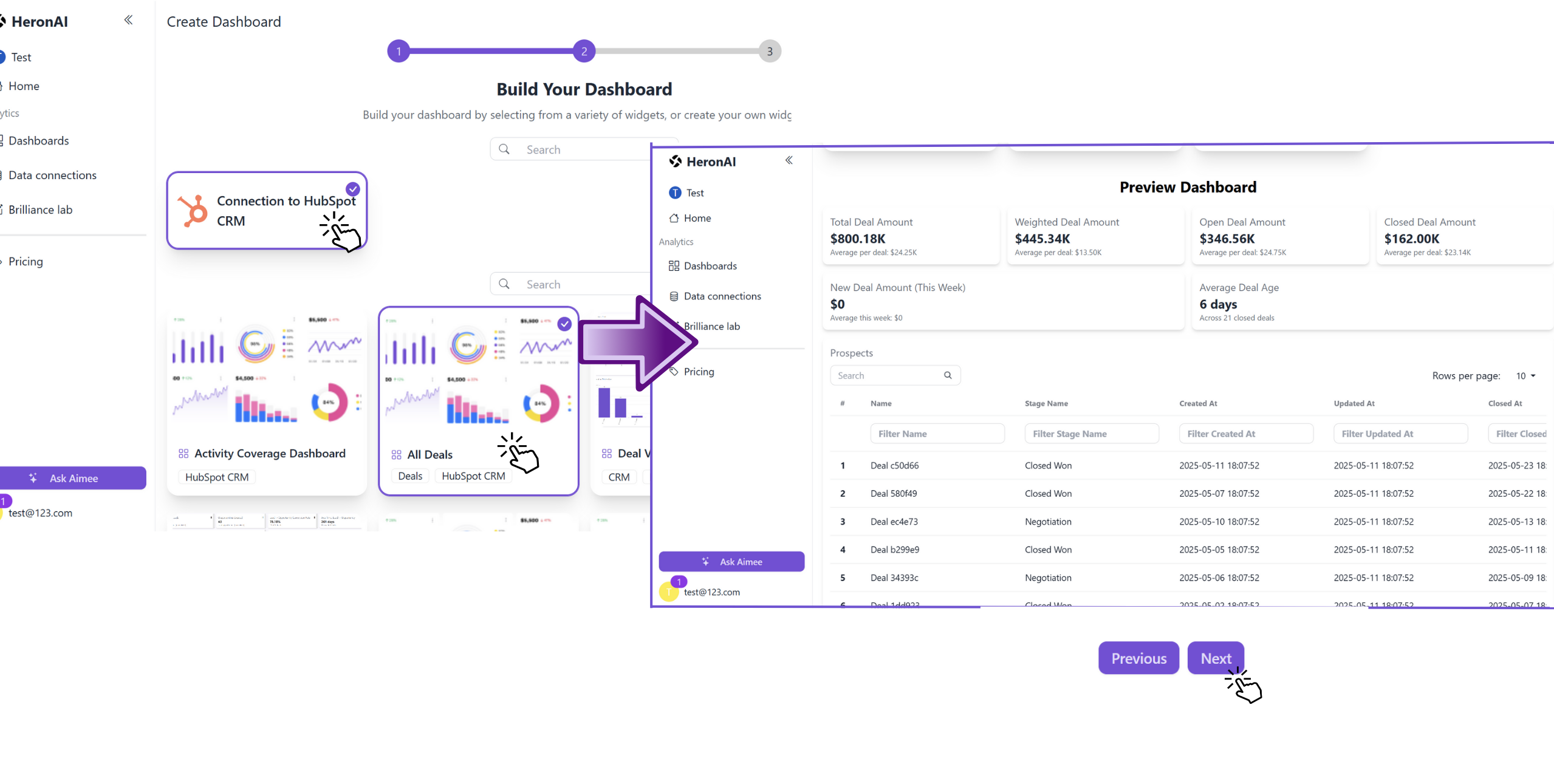
In the next step you will see the list of connections you have created, choose your HubSpot connection and you will see the list of templates designed for that particular connection.
Once you select the template of your choice among those templates you can preview the dashboard and click Next
Once you select the template of your choice among those templates you can preview the dashboard and click Next
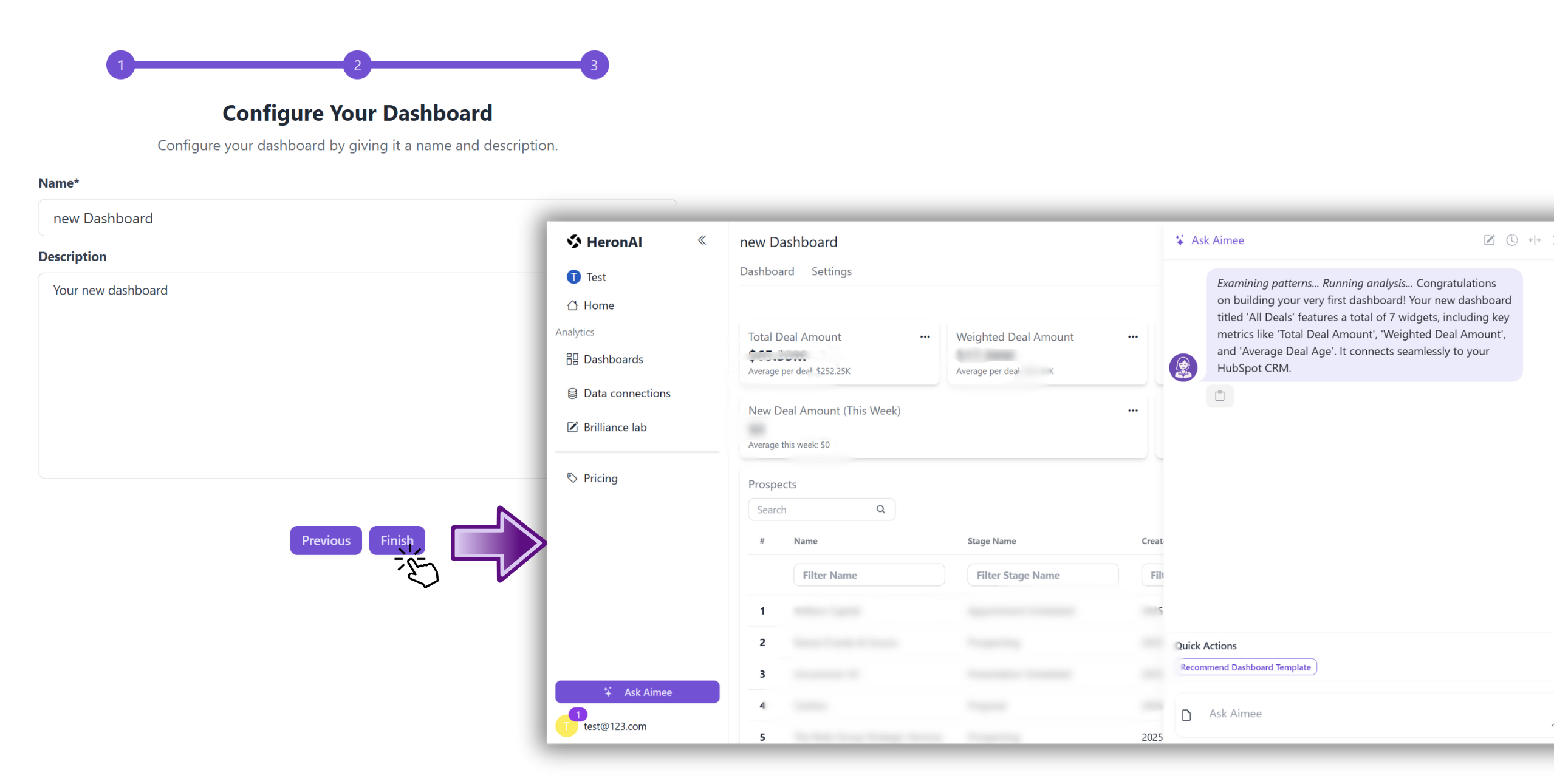
In the next step Configure your Dashboard. Give it a name and a description and click on Finish.
Your template will populate with live HubSpot data, You will also get the instant summary of your dashboard from Aimee
Your template will populate with live HubSpot data, You will also get the instant summary of your dashboard from Aimee
2. From scratch
Create completely custom dashboards tailored to your unique business needs. Use our intuitive drag-and-drop interface to select from pre-built widgets that automatically populate with your HubSpot data.
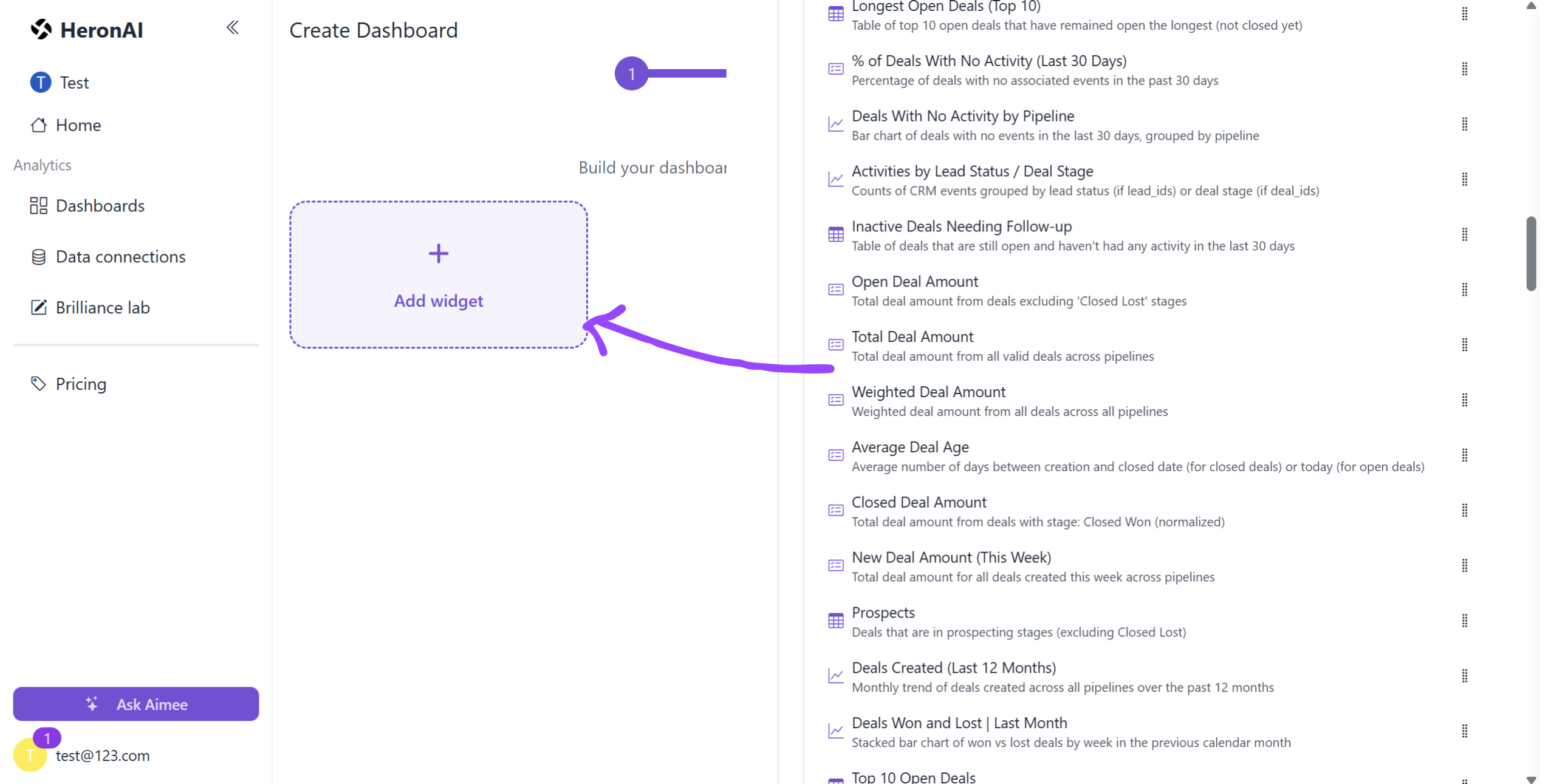
Navigate to Dashboards → New dashboard → Start from scratch
To add the widget click on new widget, this will open the side panel with several options.
Select data connection widgets -> your hubspot connection -> this will list the widgets, drag and drop the widget of your choice.
Select data connection widgets -> your hubspot connection -> this will list the widgets, drag and drop the widget of your choice.
Once the dashboard is ready, click on Save, and configure the name and description.
🤖 AI Assistant "Aimee"
Meet Aimee, your intelligent AI assistant that helps you understand your HubSpot data through natural language. Ask questions, get insights, and generate dashboard summaries - all in plain English.
To use the chatbot:
To use the chatbot:
Click the button "Ask Aimee" in the side pannel to open the chat window where you can type your questions.
Ask questions like "What was my win rate last month?" or "Show me my top performing sales reps" and get instant answers!
Summarize Dashboard
At the top of any dashboard, look for the "Summarize Dashboard" button.
Click the button and Aimee will analyze all your dashboard data to generate insights.
The summary appears as a new widget at the top of your dashboard with key findings and recommendations that you can save permanently.
Working with Dashboards
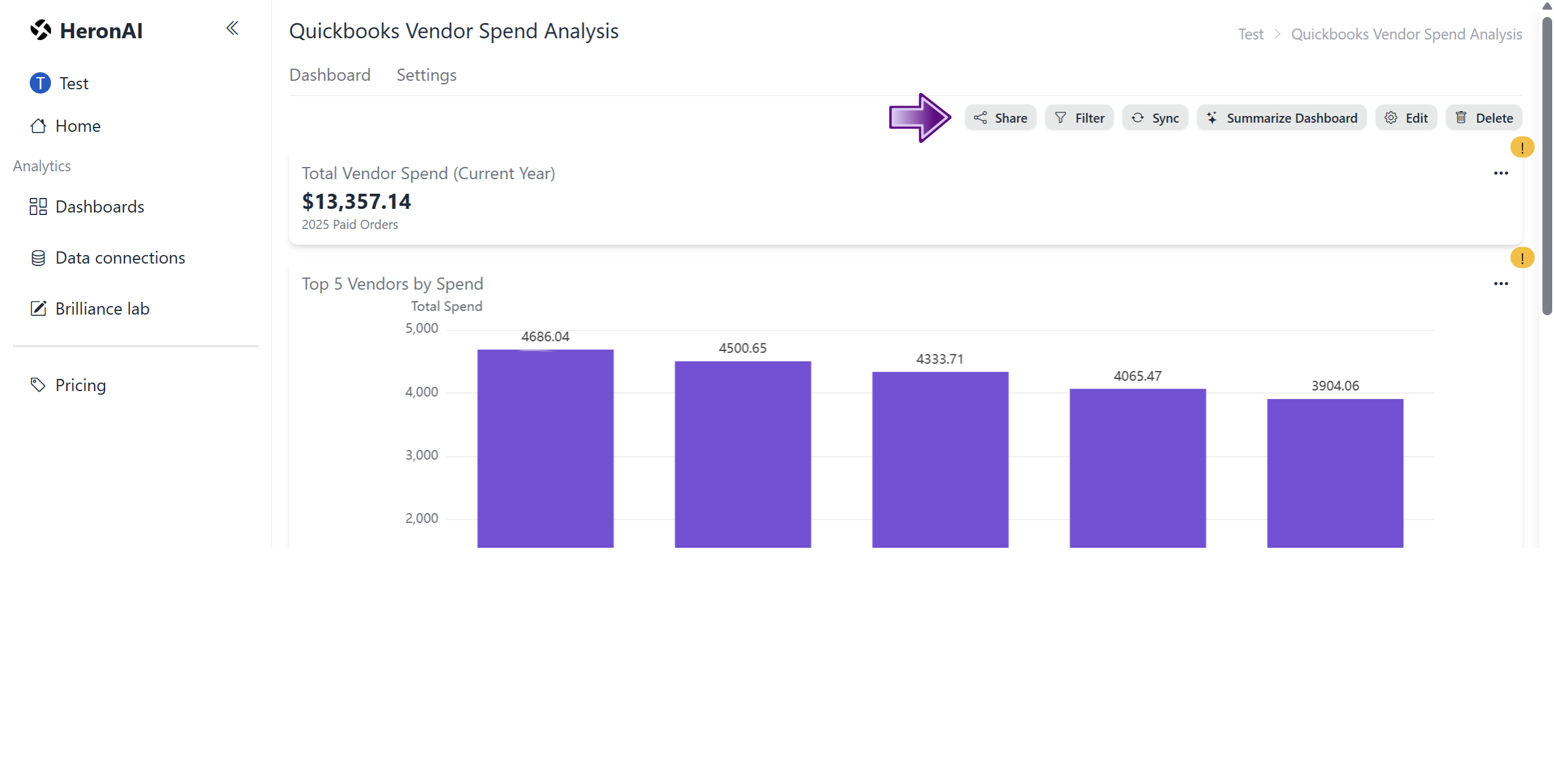
Once your dashboard is set up, Lurion provides a set of simple tools to help you manage, customize, and share your dashboards effortlessly. You will find the tools in the top of the dashboard.
Disconnecting Lurion
If you no longer want Lurion to access your HubSpot data, you can disconnect the integration at any time. To Disconnect:
Go to the Data Connections tab.
Locate your HubSpot connection card.
Click the three-dot menu (⋮) in the top-right corner of the card.
Select “Delete” from the dropdown options.
Confirm the action when prompted.
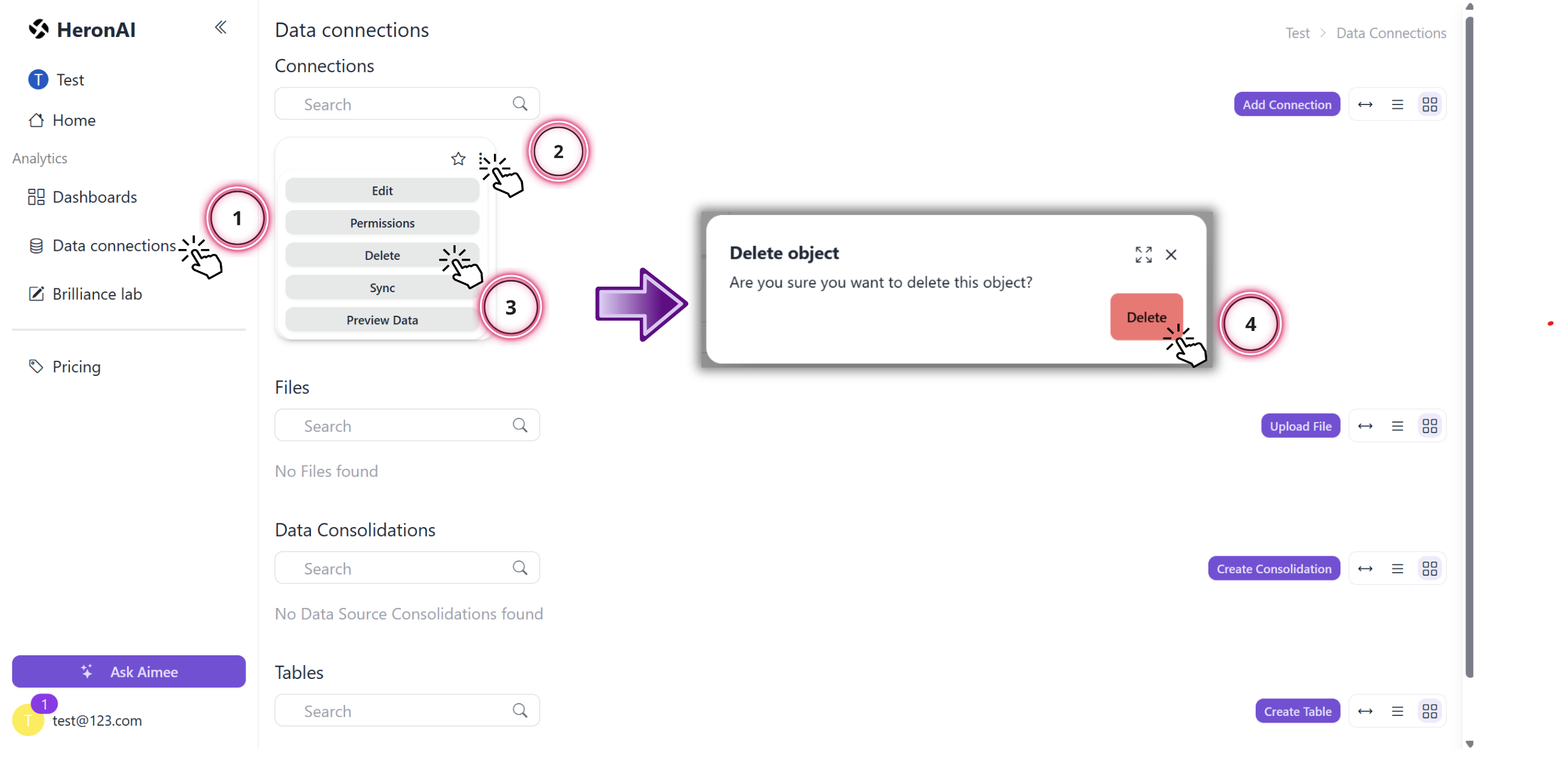
Once the connection is deleted, Lurion will no longer have access to your HubSpot data, and any dashboards relying on that data may stop displaying updates.
Uninstalling Lurion
In your HubSpot account, click the settings settings icon in the top navigation bar. In the left sidebar menu, navigate to Integrations > Connected Apps.
Next to the Lurion app, click the Actions dropdown menu and select Uninstall.
In the dialog box, type uninstall, then click Uninstall.
For more details follow the instructions in this HubSpot Knowledge Base article.